- Home
- Electronics
- Networking and Connectivity
- Best Home NAS for Beginners 20 ...


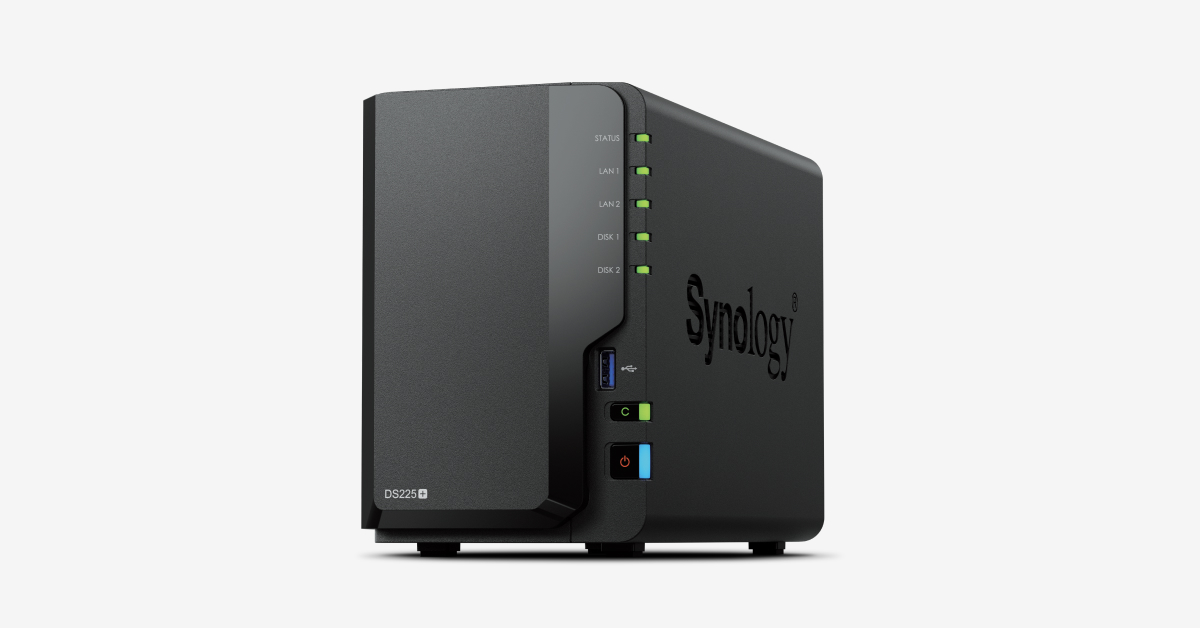
Your photos live on your phone, your documents on your laptop, your films on a streaming service — and when a hard drive dies, years of memories go with it. A home NAS (network attached storage) fixes that. It is a small box with two or more hard drives that sits on your home network, backs up every device in the house automatically, and gives you your own private cloud: photos, files and films you own outright, with no monthly fee and no company scanning your data.
In this guide we compare the three best home NAS devices for beginners in 2026: the Synology DS225+, the UGREEN NASync DXP2800 and the QNAP TS-264. We compare them on published specs and current pricing from the manufacturers’ own stores and major retailers. We have not tested these units hands-on. Prices were last checked on 18 Nov 2026 and vary by retailer. All three are sold diskless, so budget for two NAS-rated hard drives on top of the enclosure price.
Contents
- Our Quick Picks
- Home NAS Compared
- Synology DS225+
- UGREEN NASync DXP2800
- QNAP TS-264
- How to Choose Your First NAS
- Watch: Everything to Know Before Getting a NAS
- Final Verdict
- Frequently Asked Questions
Our Quick Picks
- Best overall for beginners: Synology DS225+ — the friendliest software in the business and the easiest first NAS to live with, at around $339.99 diskless.
- Best hardware for the money: UGREEN NASync DXP2800 — a faster Intel N100 chip, 8GB of DDR5 and 2.5GbE for around $349.99, with software that is improving fast.
- Best for tinkerers and media: QNAP TS-264 — dual 2.5GbE ports, two M.2 slots, a PCIe slot and HDMI for around $489, for users who will actually use the extra features.
- Best for total beginners on a budget: Synology BeeStation — an all-in-one 4TB unit with the drive included, for simple photo and file backup.
Home NAS Compared
| Feature | Synology DS225+ | UGREEN NASync DXP2800 | QNAP TS-264 |
|---|---|---|---|
| Price (diskless) | ~$339.99 | ~$349.99 (often ~$314) | ~$489 |
| Bays | 2 | 2 | 2 |
| CPU | Intel Celeron J4125 (quad-core) | Intel N100 (quad-core) | Intel Celeron N5095 (quad-core) |
| Memory | 2GB DDR4 (max 6GB) | 8GB DDR5 (max 16GB) | 8GB DDR4 (max 16GB) |
| Networking | 1GbE + 2.5GbE | 2.5GbE | Dual 2.5GbE |
| M.2 slots | None | 2x NVMe | 2x NVMe |
| Operating system | DSM | UGOS Pro | QTS |
| Photo app | Synology Photos (excellent) | UGREEN photo app / Immich | QuMagie |
| Backup | Hyper Backup, Time Machine, rsync | rsync, Veeam Agent | Hybrid Backup Sync |
Last checked: 18 Nov 2026. Prices are for diskless enclosures; NAS-rated drives are sold separately. Prices vary by retailer.
Synology DS225+

The Synology DS225+ is the default recommendation for anyone buying their first NAS, and the reason is software. Synology’s DiskStation Manager (DSM) is the most polished NAS operating system available: setup is a guided wizard and the backup and photo apps work properly on phone and desktop. For a beginner, that polish matters more than any hardware spec — a NAS you actually use beats a faster one that sits unconfigured in a cupboard.
The hardware is the weak point. The DS225+ is the successor to the DS224+, which Synology has now placed on its end-of-life list. The new model keeps the same Intel Celeron J4125 processor and 2GB of DDR4 memory (expandable to 6GB) and adds one real upgrade: a 2.5GbE port alongside the 1GbE port. It has no M.2 slots and no HDMI output. At around $339.99 diskless, you are paying for the software, not the silicon — and for most households, that is the right trade. Budget another $300 or so for two NAS-rated drives (Seagate IronWolf or WD Red are the usual choices), and start with 4TB per drive if you are archiving photos.
What We Love
- DSM is the friendliest NAS software for beginners, with the best backup and photo apps
- Hyper Backup, Time Machine and cloud sync all built in
- Now with a 2.5GbE port for faster transfers
- Hardware transcoding for Plex and media streaming
Considerations
- Aging J4125 processor and only 2GB of memory out of the box
- No M.2 slots and no HDMI output
- Newer Synology models restrict which third-party drives are supported — check compatibility before buying drives
See the Synology DS225+ product page for full specifications and the drive compatibility list.
UGREEN NASync DXP2800
UGREEN is the newcomer that has shaken up the NAS market, and the DXP2800 is its entry-level two-bay model. On hardware alone it embarrasses the Synology: an Intel N100 quad-core processor, 8GB of DDR5 memory (expandable to 16GB), a 2.5GbE port, two M.2 NVMe slots for SSD caching, and a 4K HDMI output — all for around $349.99, often discounted to about $314. If you edit photos or video directly off the NAS, or you want to run Docker containers and self-hosted apps, the DXP2800 is noticeably faster than the DS225+ in everyday use.
The catch is software maturity. UGREEN’s UGOS Pro has improved rapidly and now includes Docker, virtual machines and a solid photo app, but it is still less polished than Synology’s DSM — setup takes more decisions, the backup tools are thinner (rsync and Veeam Agent rather than a built-in suite like Hyper Backup), and cloud backup runs through containers rather than a first-party app. UGREEN is also more relaxed about third-party drives, a genuine advantage over Synology’s newer restrictions. If you are technically confident and value hardware over hand-holding, the DXP2800 is the best home NAS for the money in 2026.
What We Love
- Best hardware in the class: N100, 8GB DDR5, 2.5GbE, dual M.2, 4K HDMI
- Around $349.99 — often cheaper than the slower Synology
- Docker and virtual machine support built in
- No restrictive drive compatibility list
Considerations
- UGOS Pro software is less mature and less polished than Synology DSM
- Backup tools are thinner — no equivalent of Hyper Backup built in
- A newer brand with a shorter track record in NAS
See the UGREEN NAS website for the DXP2800 and the full NASync range.
QNAP TS-264
The QNAP TS-264 is the feature-heavy option. It runs a quad-core Intel Celeron N5095 processor with 8GB of DDR4 memory (expandable to 16GB), two 2.5GbE network ports, two M.2 NVMe slots, a PCIe expansion slot for adding 10GbE or extra storage, and a 4K HDMI output. At around $489 diskless, it is the most expensive two-bay NAS here — but it is also the only one that can grow into a serious home media server, with hardware transcoding, container support and QNAP’s Hybrid Backup Sync for 3-2-1 backup strategies.
The trade-off is complexity. QNAP’s QTS operating system is powerful but presents a lot of options at once, and it is the least beginner-friendly of the three. The TS-264 is the right choice if you know you will use the extras: dual 2.5GbE for fast transfers, M.2 slots for SSD caching, or the PCIe slot for a 10GbE card. If you only need backups and photo storage, the cheaper Synology or UGREEN will do the same job for $150 less. One practical note: QNAP has had a rough security history, so keep the firmware updated and do not expose the admin interface directly to the internet.
What We Love
- Most expandable two-bay NAS: dual 2.5GbE, dual M.2, PCIe slot, HDMI
- 8GB of memory and a capable N5095 processor out of the box
- Hybrid Backup Sync covers 3-2-1 backup properly
- Strong media and container support
Considerations
- Around $489 — the most expensive two-bay option here
- QTS is the least beginner-friendly software of the three
- Overkill if you only need backups and photo storage
See the QNAP TS-264 product page for full specifications.
How to Choose Your First NAS
Start with two bays. A two-bay NAS with two drives in RAID 1 (mirroring) is the right starting point for almost every household: one drive can fail completely and your data survives on the other. It is not a backup on its own, though — RAID protects against drive failure, not against fire, theft or accidental deletion. Follow the 3-2-1 rule: three copies of important data, on two different media types, with one copy offsite.
Next, choose your drives. Buy NAS-rated drives such as Seagate IronWolf or WD Red, designed to run 24/7 — desktop drives are cheaper but wear out faster under constant use. Start with 4TB per drive for a photo and document household, or 8TB if you archive films. Then pick your software: if you want the easiest possible experience, buy the Synology DS225+; if you want the fastest hardware for the money and you are comfortable with a bit of setup, buy the UGREEN DXP2800; if you want room to grow into media serving and home-lab projects, buy the QNAP TS-264. Wire the NAS to your router with Ethernet — Wi-Fi is too slow and unreliable for a storage device — and if your network is still on gigabit, our 2.5GbE and 10GbE home networking guide explains how to unlock the full speed of the UGREEN and QNAP. Pair it with a good mesh Wi-Fi system and every device in the house gets fast, private storage.
Watch: Everything to Know Before Getting a NAS
A beginner’s-eye view of what a NAS actually does, and what to check before you buy one:
Final Verdict
The best home NAS for beginners in 2026 is the Synology DS225+ at around $339.99 diskless. Its DSM software is the friendliest in the business, its backup and photo apps just work, and it is the one most likely to still be doing its job in five years. Buy the UGREEN NASync DXP2800 at around $349.99 if you want far better hardware for the same money and you are comfortable with a less polished setup. Buy the QNAP TS-264 at around $489 if you know you will use its dual 2.5GbE ports, M.2 slots and PCIe expansion for media serving or home-lab projects. Whichever you choose, remember the two rules that matter more than the brand: buy NAS-rated drives, and follow the 3-2-1 backup rule. A NAS is not a backup by itself.
Frequently Asked Questions
What is a NAS and do I need one?
A NAS (network attached storage) is a small box with hard drives that connects to your home network and stores files centrally, so every phone, laptop and TV in the house can access the same photos, documents and films. You need one if you have more data than fits comfortably on one device, if you want automatic backups, or if you want a private alternative to paying monthly cloud storage fees.
How much does a home NAS cost in total?
The enclosure is only half the cost. A two-bay NAS like the Synology DS225+ costs around $339.99 diskless, and two 4TB NAS-rated drives add roughly $200–$300. Budget $550–$650 all-in for a sensible first setup — and remember there is no monthly fee afterwards, unlike cloud storage.
Is two bays enough for a home NAS?
Yes, for most households. Two bays in RAID 1 mirror your data across both drives, so one drive can fail without losing anything. Four bays make sense if you want more capacity, more redundancy (RAID 5), or room to grow — but a two-bay NAS is the right starting point for beginners, and you can always add a second unit later.
Synology vs UGREEN vs QNAP — which is best for beginners?
Synology is best for beginners because its DSM software is the easiest to set up and live with, with the best backup and photo apps. UGREEN offers much better hardware for the same money but less polished software. QNAP offers the most features and expansion, but its QTS software is the most complex.
Is a NAS a backup by itself?
No. A NAS with mirrored drives protects against a single drive failure, but not against fire, theft, ransomware or accidental deletion. Follow the 3-2-1 rule: three copies of important data, on two different media types, with one copy offsite — for example, your NAS plus an encrypted cloud backup, or an external drive stored elsewhere.